
Restaurant Holiday Hours: One Update Across Google, Your Website and Social Profiles
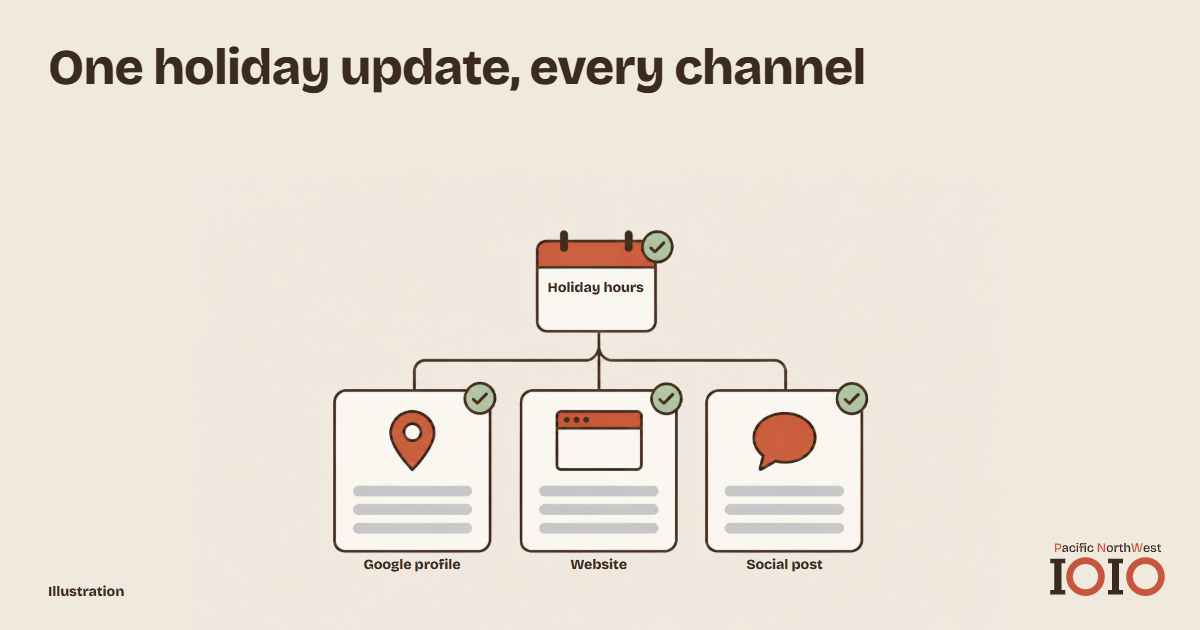
A holiday change can be simple in the kitchen and confusing everywhere else. Lunch ends early, dinner goes ahead, and someone has to make sure the hours a diner sees match the plan your staff is working from.
Give the change one owner and one written version. The timeline below shows how to prepare, publish and check a holiday update without a last-minute scramble. Adjust the timing to suit your team.
About two weeks before: settle the service plan
Decide the date, each service period and any closure with the people responsible for staffing and taking reservations. Write down the opening and closing times, including whether a service is shortened or cancelled. If the restaurant will be closed for more than one day, note the first and last closed dates and when service resumes.
Put the decision in a shared place your team can find, and name the person who approves changes and the person who makes the updates.
Now turn the plan into a sentence a guest can use. For example: “On December 24, lunch is 11 a.m.–2 p.m. and dinner is 5–9 p.m.” For a closure, give the dates closed and the date you reopen. Use the same wording wherever there is room for the full message.
About one week before: publish the change
Start with your Google Business Profile. Google’s special hours guidance covers short-term changes and lets you set them in advance without changing your regular hours. Special hours show only for the dates you set, then stop applying.
A longer closure is handled differently. Special hours cover up to 6 days in a row; for 7 days or more, or a closure with no end date, mark the profile “Temporarily closed.”
You set “Temporarily closed” yourself, and you reopen manually. Google’s reopening guidance has you open the profile’s Hours and choose “Open with main hours.” Put that step on your list, with a date next to it.
Each set of special hours must be no longer than 24 hours. If service runs past midnight, split it into two sets. Special hours show only when the profile is set to “Open with main hours.” Google also recommends confirming hours for official holidays even when they stay the same.
Put the website announcement where someone looking for opening times will find it, with the date and the actual service times together rather than a vague holiday greeting. On social profiles, publish one announcement post or update the profile text, using the agreed wording.
Use this table to track the work.
| Channel | What to change | When | How to confirm |
|---|---|---|---|
| Google profile | Enter the holiday hours or closure | About one week before | Open the public profile and check the relevant date |
| Website | Add the dated announcement near opening times | About one week before | Open the page on a phone and read the notice |
| Social post or profile text | Publish the agreed announcement | About one week before | View the post or profile as a guest |
| Door or reservation page | Display the same service plan | Before the holiday | Read the sign or open the reservation page |
Record who completed each update and keep the written plan until the holiday has passed, so a teammate covering your shift can find the right version.
Repeating this for every holiday takes time you would rather spend in the kitchen. PNW IOIO manages your website, Google Business Profile and the social platforms we agree with you as one set of channels, keeping holiday hours and announcements matching on each. You give us the plan once.
The day before: check the guest’s view
Use your phone and approach the restaurant as a guest would. Look for the holiday date, read the full message and compare it with the approved plan. A guest should be able to tell which meal they can attend, not just that the restaurant is open at some point that day.
If one version differs, correct that version and check it again. Ask the staff taking calls and welcoming guests to use the approved times too.
Once the hours are right, follow the reservation button as well; our guide to the mobile menu-to-booking journey shows how to check that it still leads to the right place.
After the holiday: clear the temporary message
Check your Google profile first. If you used special hours, search for the restaurant on your phone once the dates have passed and confirm that your regular hours show. If you marked the profile “Temporarily closed,” reopen it yourself, then search again to confirm it shows as open with the right hours. Then remove or update the holiday announcement on the website, social post or profile text and door, and check that the next opening information is clear.
For the wider sequence from your menu to reservations and orders, read our restaurant marketing guide.
Tell us which channels you use, and we will keep them in step.
Get your free digital audit Specialized digital marketing agency targeting local SMEs in the PNW region (WA/OR).