
From Your Restaurant's Mobile Menu to a Reservation or Order
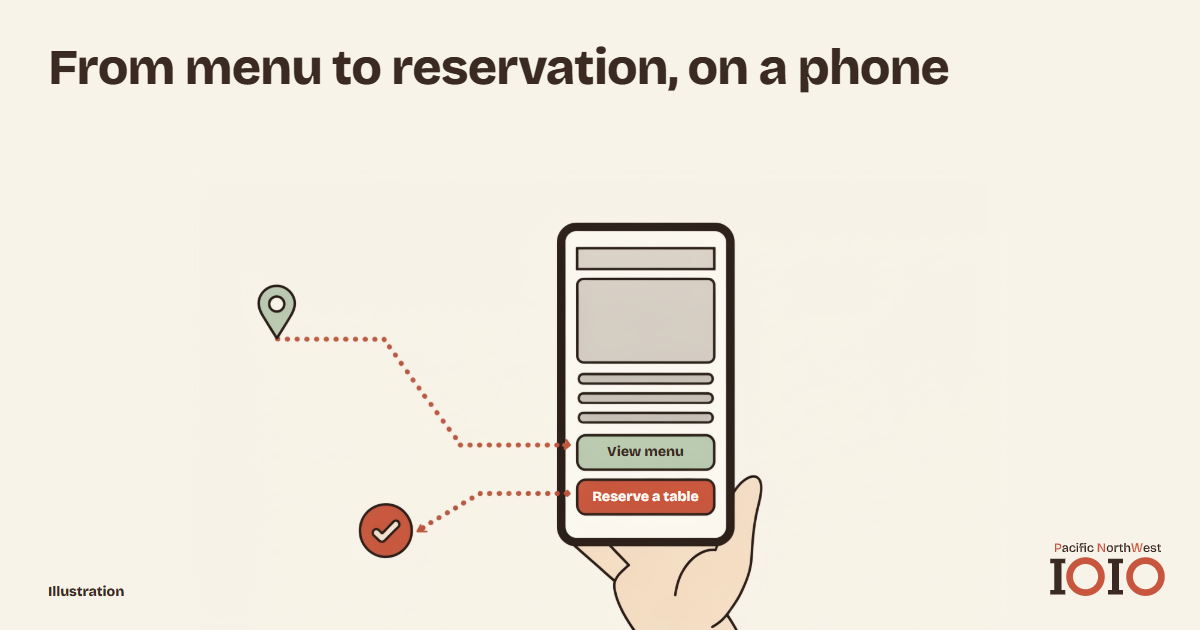
Imagine diners standing outside, deciding where to eat tonight. Your menu looks inviting on their phone, and they want to see whether you have a table. They tap the reservation button, only to arrive at a page that no longer takes bookings for your restaurant.
That is the journey to inspect: from finding your menu to taking the next step.
Walk the route on your own phone
Start where a guest might first find you. Open your public Google Business Profile, your Instagram bio link, your Facebook page and your website separately. Follow each route to the menu, then continue to a reservation or an order. Stay on your phone throughout, including when a link opens another page.
For this pass, act like someone who has never visited. Avoid shortcuts saved in your browser or links you keep in an owner's account. Read the button labels before tapping. “View menu,” “Reserve a table” and “Order pickup” should describe the destination you actually reach. Those are suggested labels; choose wording that matches what your restaurant offers.
From Google, follow the menu link and then look for your next action. From Instagram, open the bio link as a visitor would. If it leads to a page of links, make the menu and booking or ordering choices easy to distinguish. On Facebook, follow the public link you currently provide. On your website, begin at the homepage instead of going straight to a page whose address you already know.
Check speed on the same walk. Open your website and your menu on mobile data, away from your Wi-Fi, the way a guest on the sidewalk would. Nobody wants to stand outside waiting for a site to load, so notice whether the menu or booking button is slow enough to make you give up. Our full website audit also checks how your site and menu load, with next steps in priority order.
Give each entrance a clear destination
Use this small table to record where each route should lead. Write down the actual destination beside it while you test, so whoever maintains the links knows what needs changing.
| Entrance | Intended landing page | What to inspect |
|---|---|---|
| Google profile | Current menu or the selected action | Correct restaurant and working next step |
| Instagram bio | Menu or clearly labelled choices | Labels agree with their destinations |
| Facebook page | Current restaurant page or menu | Public link reaches the intended page |
| Website homepage | Menu, with a clear next action | Reservation and ordering buttons work |
Pick the destination to suit the entrance. A link labelled “Menu” should let guests see the menu. A link labelled “Order pickup” should take them toward pickup ordering.
Follow the button past the first screen
A page loading successfully is only part of the test. Continue until you can see that the reservation page belongs to your restaurant and offers the intended booking choices. For an order, check the restaurant location and the fulfilment choice before adding anything. Stop before placing a real order or holding a table.
Look for links left behind after a change. An old menu address might still open, while its reservation button points to your previous provider. Correct each public entrance that uses the old address; changing the website alone leaves the other routes untouched.
Also notice what happens when the next step is unavailable. If you do not accept online reservations, describe the way guests should contact you instead. If a link offers pickup, its destination should not leave a guest guessing whether they have selected delivery.
Set your Google profile links deliberately
Google's guidance on managing business links allows one menu link and up to ten links per action category, such as reservations or food orders. Where you have multiple links, you can mark a “Business preferred” choice. Select that preference deliberately, then inspect the public result on your phone.
Some links come from third-party providers. Google's guidance explains how to request their removal through Booking, then Remove Provider, in Search or Maps. Review those links when you change providers. Switching off “Accept orders on your profile” hides all ordering options, so use that control only when hiding the whole ordering choice is what you intend.
For the separate work of making menu text readable for AI search, see our restaurant search guide. Put this phone walkthrough into the wider routine described in restaurant marketing without paid ads.
If the problem is the site itself, such as a menu that is hard to read on a small screen or a booking button buried down the page, that is work we do. PNW IOIO builds and improves restaurant websites around the phone: a readable menu and a clear route to your reservation, order or directions link. The booking and ordering stay with the provider you already use.
Return to the guest holding a phone: after reading your menu, they should be able to recognise and follow the next step you offer.
Get your free digital audit Specialized digital marketing agency targeting local SMEs in the PNW region (WA/OR).